
Jump to the Microsoft 365 applications and capabilities reference table
Microsoft 365 as a connected productivity platform
Microsoft 365 is a connected business productivity platform with AI increasingly built into the apps people use every day to get work done. It combines familiar productivity apps with collaboration, shared content and tenant administration. A team can analyse results in Excel, review them in Teams, co-author a proposal in Word and present its recommendation in PowerPoint. SharePoint, OneDrive and Exchange Online support much of the content and communication behind that work. Copilot offers basic AI assistance and paid premium capabilities, both across apps and within supported apps. Agents can take actions in supported experiences, depending on the licence, configuration and user permissions. In supported experiences, Copilot draws on the context available to the user.
This guide focuses on business productivity and how organisations use Microsoft 365 to create content, collaborate and manage work. Microsoft 365 is also widely used in education and for personal productivity.
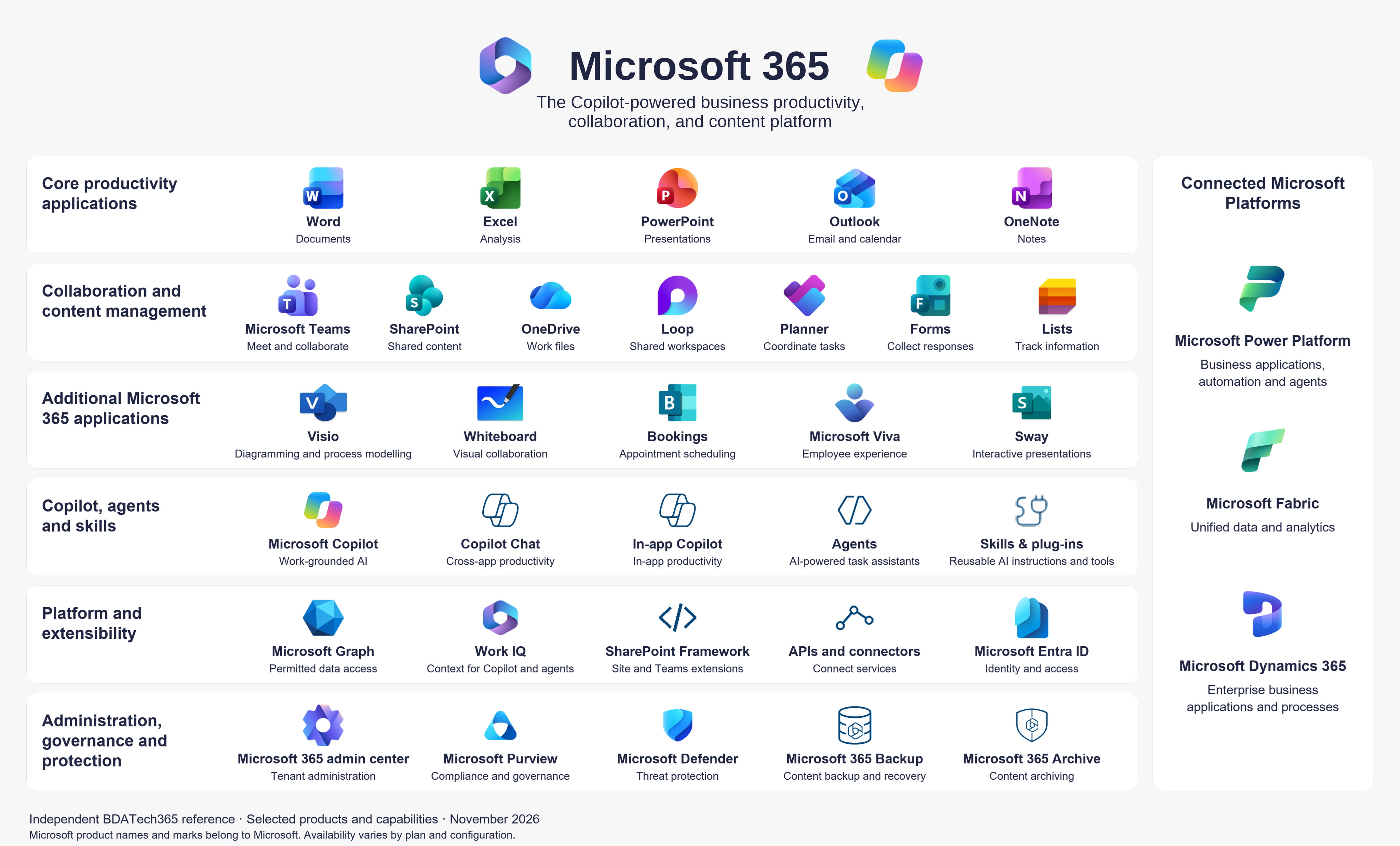
The graphic groups selected products and capabilities by the role they play. The six layers are a BDATech365 framework for understanding how the ecosystem fits together. A separate side panel shows three connected Microsoft platforms. They are independent of Microsoft’s product taxonomy and licensing bundles.
Core productivity applications
- Word supports drafting, reviewing and co-authoring documents such as policies, proposals and requirements.
- Excel supports calculation, modelling and analysis. Tables, PivotTables and Power Query help analysts prepare and explore data.
- PowerPoint turns evidence and recommendations into presentations for decisions, training or communications.
- Outlook brings together email, calendar and meeting coordination, commonly backed by Exchange Online in an organisation.
- OneNote captures research, meeting notes and working material in notebooks.
Desktop, web and mobile apps
Word, Excel and PowerPoint are available in the browser and as installed desktop apps, depending on the subscription. Microsoft 365 Business Basic includes web and mobile apps, while Business Standard also includes desktop apps. The browser works well for everyday editing and co-authoring. The desktop apps support offline work and may offer features unavailable in the browser. Compare Microsoft 365 business plans
On iPhone, iPad and Android, the Word, Excel and PowerPoint mobile apps let you review, share and edit files while away from your desk. Available features depend on the app, device and subscription. Microsoft 365 mobile apps
Finding your Microsoft 365 apps on the web
Sign in to the Microsoft 365 web portal with your work account and look under Apps to see what your organisation makes available. Alongside familiar apps such as Word and Excel, eligible business and enterprise users can open Visio for the web to create basic diagrams such as process flowcharts. Advanced diagram types and features depend on your Visio plan. Visio for the web and plan options
OneDrive is the default save location for new files
When you are signed in and save a new Word, Excel or PowerPoint file, OneDrive is typically the default save location. You can choose another location, such as a SharePoint document library for team content or a local folder in the desktop app. Files created in a SharePoint library or uploaded to a Teams channel are stored in SharePoint. Supported files in OneDrive or SharePoint can use AutoSave, version history and co-authoring. Save and recover Microsoft 365 files
Collaboration and content management
Microsoft 365 offers rich in-app experiences and features to enable real-time collaboration, communication and content creation.
In supported Word, Excel and PowerPoint files, use an @mention in a comment to notify a colleague, leave a note, ask a question or flag an action for follow-up. Use @mentions in comments.
In Microsoft Teams chats and channels, type @ and select a team member to notify them. In supported group chats, you can @mention Copilot with a Copilot licence. You can also @mention an agent where it is available in a chat or channel. Agent access depends on the agent, applicable licensing and organisational settings.
- Microsoft Teams brings together chat, meetings, calls and channel collaboration. Channel files are stored in SharePoint. Files uploaded to chats are generally stored in the sender’s OneDrive and shared with chat participants.
- SharePoint provides team sites, document libraries, intranets and organisational knowledge. OneDrive is the starting point for individual work files and sharing them with others.
- Loop provides shared workspaces, pages and components that teams can edit together in supported experiences. Planner helps assign and track work.
- Forms collects responses to surveys, quizzes and requests. Lists tracks structured information such as issues, assets and requests, with views and rules suited to the process.
File storage in Microsoft Teams
Co-presence and real-time co-authoring
Co-presence lets you see who else is working in the same document. In supported apps, you can also see where collaborators are editing and watch their changes appear as they work. Co-authoring lets everyone build and revise one shared Word document, Excel workbook or PowerPoint presentation together when it is stored in OneDrive or SharePoint and they have editing access. For example, colleagues can draft different sections of a proposal while reviewing each other's changes in the same file. Document collaboration and co-authoring
Microsoft's Fluid Framework powers real-time collaboration in Microsoft Loop and Whiteboard. In Loop, it helps keep shared components such as a checklist in sync wherever people edit them in supported apps. Fluid Framework in Loop and Whiteboard
SharePoint team sites and communication sites
A team site gives a group a shared place to collaborate on files and manage project information. A communication site helps a smaller group of authors publish news, policies and guidance to a wider audience. A project team might use a team site to draft a policy and a communication site to publish the approved version. Create a team or communication site
How OneDrive and SharePoint work together
OneDrive for work uses SharePoint technology to give each user an individual file library for working documents and selective sharing. SharePoint document libraries give teams a shared home for content they manage together. Start an individual draft in OneDrive, then move it to the team library when the team takes ownership. The OneDrive sync app can also make supported SharePoint libraries available in File Explorer. Choose where to save your files
Additional Microsoft 365 applications
- Visio turns processes, systems and responsibilities into diagrams. A business analyst can map an approval process and share the diagram with reviewers through Microsoft 365. Browser and desktop capabilities vary by plan.
- Microsoft Whiteboard gives teams a shared canvas for brainstorming, workshops and planning. In a Teams meeting, participants can group ideas and sketch a process together.
- Microsoft Bookings lets customers or colleagues choose an appointment from published availability. A service team can offer consultation slots that use staff Outlook calendars and add a Teams meeting where configured.
- Microsoft Viva is an employee experience product family. An organisation can use supported Viva experiences in Teams and Microsoft 365 to surface internal communications, learning or insights. Capabilities and entitlements vary by Viva product.
- Sway creates browser-based interactive presentations, newsletters and reports. A communications team can combine text, images and media in a link it shares with colleagues under the applicable sharing settings.
Microsoft Copilot, agents and skills
Copilot Chat provides conversational AI for eligible business users signed in with a work account. It can draw on web information and use supported files you upload as context for a prompt.
With the Microsoft Copilot add-on licence, you can upload files and reference existing work files you have permission to access through Add content → Files. In supported experiences, type / in the prompt box to open the picker and select a file. The Work IQ picker shows All, Agents & Skills, People, Files, Meetings and Emails. The +4 menu shows Chats, Channels, Sites and Fabric. The add-on also enables broader work-grounded assistance through Work IQ. Availability varies by plan, app, rollout and tenant configuration.
Users can start with a question in Copilot or start in the app where the work already lives. In supported experiences, Copilot in Word can help draft or revise a document, Copilot in Excel can help explore workbook data, and Copilot in PowerPoint can help prepare or refine a presentation. Microsoft also documents dedicated Word, Excel and PowerPoint creation agents that generate files from Copilot Chat for eligible paid users, subject to administrator settings.
Example. A business analyst asks Copilot to summarise an approved service review and identify the measures that need investigation. In a supported experience, they use the available creation tools to prepare a draft Excel workbook, Word briefing or PowerPoint deck, then open it in the relevant app to check figures, refine the analysis and share the result for review.
Agents focus on a defined task or domain and can use configured knowledge and, where supported, tools or actions. Skills package reusable instructions and supporting material for a task in supported agent experiences. Traditional automation, such as a Power Automate flow, executes predefined triggers and actions. A workflow can combine the two, using an agent to summarise a request and a flow to route an approval through explicit rules.
Microsoft Graph can supply organisational context for supported Copilot experiences. Existing access permissions determine what content users can retrieve, so organisations should review oversharing and content quality before broad rollout. Agents grounded in instructions and public websites are included with eligible Copilot Chat plans. On basic plans, agents that access shared organisational data, such as SharePoint content, require metered billing. The Microsoft Copilot add-on licence includes qualifying agent use for licensed users. Agent licensing and billing.
Copilot Chat overview · Copilot licensing · Word, Excel and PowerPoint agents · Skills in declarative agents
Microsoft Graph and platform extensibility
Microsoft Graph gives applications a common API for supported Microsoft 365 data and services, including files, calendars, users and groups. Delegated permissions allow an app to act in the context of a signed-in user. Application permissions allow an app to act as itself within the scope of the permissions granted. Use the smallest permission scope that meets the requirement.
Work IQ is the intelligence layer that helps Copilot and agents understand work in context, drawing on information such as files, emails, meetings and connected apps within supported experiences. How Copilot uses work context
SharePoint Framework supports custom components such as web parts and extensions in SharePoint, with supported options for Teams. APIs and connectors serve different integration needs. For instance, a Power Automate connector can route a list item for approval, while a Microsoft 365 Copilot connector can make supported external content discoverable for search and AI experiences within its configured access boundaries.
Microsoft Graph · SharePoint Framework
Administration, security and governance
The Microsoft 365 admin center is a central place to manage users, subscriptions, service health and tenant settings. Microsoft Entra ID provides identity and access controls. Microsoft Purview supports information protection, retention, auditing and compliance. Microsoft Defender helps protect against threats, with Defender for Office 365 covering email and collaboration threats where licensed. Review which plans and settings apply before designing controls.
Microsoft 365 admin documentation · Microsoft Purview · Defender for Office 365
Microsoft 365 Backup, Archive and data lifecycle
Microsoft 365 Backup supports recovery for protected SharePoint sites, OneDrive accounts and Exchange mailboxes. Microsoft 365 Archive moves eligible inactive SharePoint content to a colder storage tier so organisations can keep it for future retrieval. Both are pay-as-you-go services with distinct billing models. Check the documentation for supported content and any preview features before rolling out automation.
Retention governs what to keep or delete and when. Backup provides recovery points for restoring protected content. Archive keeps inactive content in a storage tier suited to infrequent use. An organisation may need all three for different parts of its information lifecycle.
Backup overview · Archive overview · Microsoft 365 pay-as-you-go services
Connected Microsoft platforms
Microsoft Power Platform extends everyday Microsoft 365 work with Power Apps for business applications, Power Automate for workflows, Power Pages for business websites and Microsoft Copilot Studio for building and extending agents. For example, a team can capture a request in Lists and route it for approval through Power Automate. Dataverse can provide the business data and rules behind the process. Read the Power Platform guide.
Microsoft Fabric unifies enterprise data and analytics. Power BI connects that work to Microsoft 365, for example by letting users explore governed semantic models in Excel or present live reports in PowerPoint. Fabric IQ adds business context for supported analytics and agent experiences. Read the Fabric guide.
Microsoft Dynamics 365 supports business processes across sales, service, finance and operations. Where supported, Dataverse connects Dynamics 365 business data to Power Platform apps and workflows.
Microsoft Graph gives authorised applications API access to Microsoft 365 data. Connectors and platform APIs provide other integration paths. Emerging agent integrations can use the Model Context Protocol (MCP) to access supported tools and data. For example, Business Applications in Work IQ is in public preview and connects supported Copilot experiences and MCP clients to Power Apps and Dynamics 365 data. Availability depends on the feature, configuration and permissions.
Microsoft 365 applications and capabilities reference
The first table follows the six Microsoft 365 ecosystem layers in the graphic. A separate table covers the three connected Microsoft platforms. App access, feature availability and licensing vary by plan and configuration.
| Logo | Product / capability | Category | Primary purpose | Example use case | Microsoft documentation |
|---|---|---|---|---|---|
 | Word | Core productivity applications | Create and review documents | Co-author a policy or proposal | Word documentation |
 | Excel | Core productivity applications | Calculate, model and analyse data | Reconcile sales using tables and PivotTables | Excel documentation |
 | PowerPoint | Core productivity applications | Build presentations | Present an investment recommendation | PowerPoint documentation |
 | Outlook | Core productivity applications | Manage email and calendars | Coordinate meetings across teams | Outlook documentation |
 | OneNote | Core productivity applications | Organise notes in notebooks | Collect research and workshop notes | OneNote documentation |
 | Microsoft Teams | Collaboration and content management | Chat, meet and collaborate in channels | Run a project meeting and share its files | Microsoft Teams documentation |
 | SharePoint | Collaboration and content management | Manage shared sites and document libraries | Publish policies or maintain project files | SharePoint documentation |
 | OneDrive | Collaboration and content management | Store, sync and share individual work files | Share a draft for review | OneDrive documentation |
 | Loop | Collaboration and content management | Co-edit workspaces, pages and components | Maintain a shared meeting agenda | Loop documentation |
 | Planner | Collaboration and content management | Assign and track tasks | Coordinate a product launch checklist | Planner documentation |
 | Forms | Collaboration and content management | Collect responses to surveys and forms | Gather post-training feedback | Forms documentation |
 | Lists | Collaboration and content management | Track structured information | Manage an issue register | Lists documentation |
 | Visio | Additional Microsoft 365 applications | Diagram processes and systems | Map a service approval workflow | Visio documentation |
 | Whiteboard | Additional Microsoft 365 applications | Collaborate on a shared canvas | Cluster ideas during a Teams workshop | Whiteboard documentation |
 | Bookings | Additional Microsoft 365 applications | Schedule appointments | Let clients choose available consultation slots | Bookings documentation |
 | Microsoft Viva | Additional Microsoft 365 applications | Employee experience product family | Surface internal communications and learning | Microsoft Viva documentation |
 | Sway | Additional Microsoft 365 applications | Create interactive web presentations | Publish an internal multimedia newsletter | Sway documentation |
 | Microsoft Copilot | Copilot, agents and skills | Provide AI assistance grounded in work context | Summarise accessible files and meetings | Microsoft Copilot documentation |
 | Copilot Chat | Copilot, agents and skills | Support conversational work across tasks | Compare options and draft a briefing | Copilot Chat documentation |
 | In-app Copilot | Copilot, agents and skills | Assist within supported Microsoft 365 apps | Explore data in the current Excel workbook | In-app Copilot documentation |
 | Agents | Copilot, agents and skills | Assist with defined tasks using configured knowledge and tools | Answer questions from an approved policy library | Agents documentation |
 | Skills & plug-ins | Copilot, agents and skills | Package instructions or extend what supported agents can do | Apply a standard process to a recurring review | Skills & plug-ins documentation |
 | Microsoft Graph | Platform and extensibility | Expose permitted Microsoft 365 data and services through APIs | Read calendars for a scheduling app | Microsoft Graph documentation |
 | Work IQ | Platform and extensibility | Provide work context for Copilot and agents | Ground a project summary in relevant work information | Work IQ documentation |
 | SharePoint Framework | Platform and extensibility | Build SharePoint and supported Teams extensions | Add a custom web part to an intranet | SharePoint Framework documentation |
 | APIs and connectors | Platform and extensibility | Connect data, services or actions within permission boundaries | Expose an approved knowledge base to search | APIs and connectors documentation |
 | Microsoft Entra ID | Platform and extensibility | Manage identity and access | Require multifactor authentication for work apps | Microsoft Entra ID documentation |
 | Microsoft 365 admin center | Administration, governance and protection | Manage the tenant, users and services | Assign licences and check service health | Microsoft 365 admin center documentation |
 | Microsoft Purview | Administration, governance and protection | Govern and protect information and support compliance | Apply sensitivity labels or retention policies | Microsoft Purview documentation |
 | Microsoft Defender | Administration, governance and protection | Protect against threats across supported workloads | Investigate suspicious email activity with Defender for Office 365 | Microsoft Defender documentation |
 | Microsoft 365 Backup | Administration, governance and protection | Back up and recover protected content | Restore a protected SharePoint site after data loss | Microsoft 365 Backup documentation |
 | Microsoft 365 Archive | Administration, governance and protection | Archive eligible inactive SharePoint content | Move a completed project site to colder storage | Microsoft 365 Archive documentation |
| Logo | Platform | Primary purpose | Example use case | Documentation |
|---|---|---|---|---|
 | Microsoft Power Platform | Build apps, flows and agents | Automate approvals from Teams | Microsoft Power Platform documentation |
 | Microsoft Fabric | Unify enterprise data and analytics | Explore governed Power BI data in Excel | Microsoft Fabric documentation |
 | Microsoft Dynamics 365 | Support CRM and ERP processes | Work with authorised sales data across apps | Microsoft Dynamics 365 documentation |
Legacy applications, product retirement and modernisation paths
Microsoft Access remains a supported option in current editions. It can suit established Windows desktop databases with forms, queries and reports. Assess business criticality, security, concurrency and maintenance before changing a working system. If the desktop interface still meets the need, moving the data to SQL Server can preserve that interface. Consider Power Apps and Dataverse when users need browser or mobile access, shared business data or broader workflow integration. Validate existing queries, VBA, forms and reports before committing to a migration.
| Logo | Product or feature | Status | Microsoft milestone | Modernisation guidance |
|---|---|---|---|---|
 | Access 2024 | Supported | Support ends 9 October 2029 | Maintain supported deployments and evaluate migration where requirements warrant it. Access 2024 lifecycle |
| SharePoint Online remote event receivers registered with a Microsoft Entra application | Announced retirement | 1 July 2027 | Assess SharePoint webhooks or supported Microsoft Graph change notifications. SharePoint retirement FAQ |
 | Microsoft Publisher | Removed from Microsoft 365. Support ended for Publisher 2021. | Subscription removal began 1 October 2026. Publisher 2021 support ended 13 October 2026. | Use exported PDFs for reference and rebuild editable templates in Word or PowerPoint as appropriate. Publisher retirement guidance |
 | Project Online | Retired | 30 September 2026 | Assess Planner or another project portfolio tool against the scheduling, reporting and governance features you need. Project Online lifecycle and retirement guidance |
| SharePoint Alerts | Retired in SharePoint Online | July 2026 | Recreate relevant notifications with SharePoint Rules or Power Automate. SharePoint Alerts retirement guidance |
 | Microsoft Stream | Brand consolidated into Clipchamp | Microsoft unified Stream and Clipchamp video capabilities under Clipchamp | Use Clipchamp for work to play, share and manage videos stored in SharePoint or OneDrive. Clipchamp video overview |
The forthcoming Microsoft Copilot Platform Guide will explore agents, skills, orchestration and extensibility in more depth.
Putting Microsoft 365 to work
Start with the business process and the outcome it needs to improve. Decide where the content belongs, who should have access and where automation or Copilot can reduce effort. Measure adoption and outcomes such as turnaround time, rework or decision speed, then use what you learn to guide the next rollout.
Resources, documentation and learning
- Microsoft Learn training and Microsoft 365 documentation
- Microsoft Adoption resources and the Microsoft 365 roadmap
- Microsoft 365 admin documentation and Microsoft Graph documentation
About this reference
Independent BDATech365 guide, reviewed against Microsoft documentation in November 2026. Microsoft 365 and the Microsoft products, trademarks and icons shown in this guide belong to Microsoft Corporation. See our Copyright & Trademarks notice.